How to Take a Passport Photo at Home (Step-by-Step, 2026)
A studio passport photo costs US$15–25 in 2026; a print at your local Walgreens or Boots costs about thirty cents. The difference is a fifteen-minute workflow you can do at home with a phone, a window, and a free browser tool. This guide is the step-by-step I send to anyone who emails to say their first attempt got rejected. It assumes nothing — if you already know how to take a clean photo, skim sections 3 and 5 and jump to the printing step.
1. What you actually need
The bare minimum to get a passport-acceptable shot at home:
- A phone made in the last five years. Any iPhone from XR onwards, any Samsung Galaxy from S10 onwards, any Pixel from 3 onwards, or equivalent. The rear camera is what matters — do not use selfie/front cameras, they distort facial proportions in ways passport scanners flag.
- A plain wall, or a white sheet/poster board. Roughly 1×1 m of plain surface behind you. If your walls are textured or coloured, tape up a sheet of white poster board (~US$2 at any office supply store) or hang a plain white bedsheet.
- Daylight from a window. Ideally a large window on a slightly overcast day. Bright direct sun is too harsh.
- Something to hold the camera. A phone tripod (US$10–15 on Amazon), a stack of books at face height, or a willing partner.
- A printer or a nearby photo lab. Most pharmacies will print a 4R photo sheet for US$0.30–0.50. If you have a home printer, use photo-grade paper.
What you do not need: a ring light, studio strobes, a beauty filter app, a paid photo-editing subscription, or a tripod that costs more than the photo would have at a pharmacy. The point of this guide is doing it on the cheap.
2. Step 1 — The background
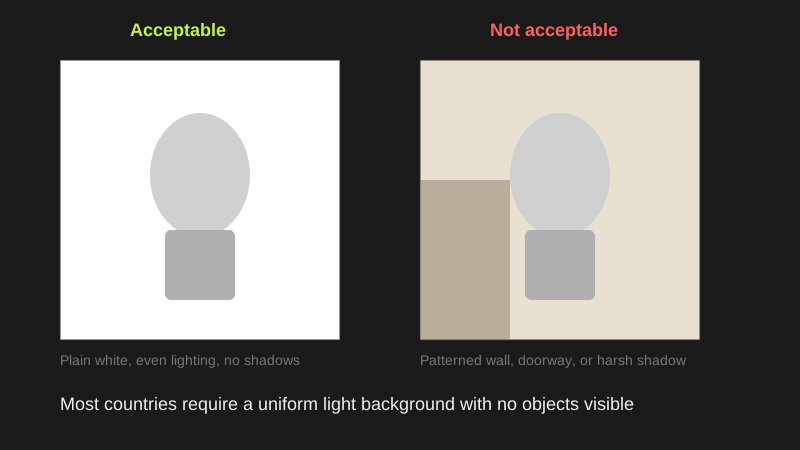
Most rejected home photos fail here. The background needs to be plain, uniformly lit, and the right colour for your country (white for the US, India, China and most of Asia; light grey or cream for the UK, Germany, Netherlands; off-white for Canada, Australia). Practical steps:
- Pick the plainest wall in your home. Avoid textured paint, wallpaper, anything mounted at head height.
- Stand 50–100 cm in front of it. Closer than 50 cm and your body casts a faint shadow that the phone screen hides but a passport scanner sees. Farther than 100 cm and you lose detail.
- If your wall is not plain enough, tape a 65×90 cm sheet of white poster board to the wall behind your head and shoulders. Tape from behind so you do not see the tape.
- Do not put anything in the frame. No picture frames, no light switches, no door edges. Stand far enough from any wall corner that the corner shadow falls outside the head-and-shoulders area.
If the background still looks imperfect: shoot anyway. Use the AI background removal toggle in our maker; it replaces any background with a flat colour of your choice.
3. Step 2 — Lighting
Lighting decides whether your face looks like a passport photo or like a hostage video. The single most reliable setup is indirect natural daylight from a window placed directly in front of you. Specifics:
- Best: face a large window mid-morning or mid-afternoon on an overcast day. The diffuse light hits your face evenly with no harsh shadows.
- Acceptable: face a window in bright sun through a thin white curtain. The curtain acts as a softbox.
- Backup: two lamps placed at roughly 45-degree angles either side of the camera, at face height, with daylight-balanced (5000K–6500K) LED bulbs. Avoid yellow tungsten bulbs — they push the photo's colour balance warm and the background ends up looking cream when it should be white.
- Avoid: overhead-only lighting (creates raccoon shadows under eyes and chin), direct sunlight from one side (creates a hard shadow line down half your face), and the built-in phone flash (too small to soften; produces hard rim shadows on the wall behind you).
The bounce trick: hold a piece of plain white paper or card flat at chest level, just below the camera frame. It bounces the window light up into your face and fills the under-eye shadows. Costs nothing, makes a noticeable difference.
4. Step 3 — Camera settings
Phone cameras try to do too much. A few settings tweaks help:
- Use the rear camera, not the selfie camera. Selfie cameras use a wider lens that exaggerates facial proportions (longer nose, shorter chin). Several passport offices reject visibly selfie-shot photos.
- Turn off beauty mode. On Samsung Galaxy: Camera → tap the wand icon → set Beauty to 0. On Xiaomi/Redmi: Camera → Smart Beauty → Off. On Huawei: Camera → Beauty → Level 0. iPhones do not apply beauty by default, but check Portrait mode is not activated.
- Disable portrait/depth-of-field mode. Passport photos need everything in focus — a blurred background is rejected as “not a plain background.”
- Set the highest resolution. Most phones default to a lower resolution to save storage. Bump to the maximum — you need at least 1200×1500 px after cropping.
- Turn off the flash. See section 3.
- Lock exposure on your face. On iPhone, tap and hold on your face in the viewfinder until “AE/AF Lock” appears. On Android, tap your face. This stops the camera re-exposing if the wall is brighter than your skin.
5. Step 4 — Posing and taking the photo
With the lighting, camera, and background set up, the actual photo is sixty seconds of work:
- Stand or sit straight with shoulders square to the camera. The camera should be at eye level, not looking up or down at you. If you have a phone tripod, set the height; if not, balance the phone on a stack of books.
- Look directly into the lens (not at your image on the screen). The lens is the small dot, not the screen.
- Keep a neutral expression. Mouth closed but not clamped, lips relaxed, slight separation if natural. Eyes open and looking at the lens. No smile.
- Remove glasses if you wear them. Even prescription glasses must come off in 2026 for the US, UK, Australia, Canada, India, and most Schengen members.
- Remove hats, headbands, fashion head coverings. Religious head coverings (hijab, turban, kippah, etc.) are allowed if your full face is still visible.
- Push hair back behind ears — both ears must be visible for India and several Middle East countries.
- Frame the shot to include your head, shoulders, and 10– 15 cm of background around you. The cropper needs room to work. Do not crop tightly to your head in the phone — you cannot un-crop later.
- Take 5–10 shots. Inspect each at full zoom for sharp focus, even lighting, neutral expression, no shadow on the wall, no flyaway hair.
Pick the best shot. Move on.
6. Step 5 — Process the photo
Open the Free Passport Photo Maker in your browser. The flow:
- Upload your chosen frame by dragging it into the upload area or clicking to browse. The file stays in your browser; no upload happens to any server.
- Pick your country from the preset dropdown. The crop frame and head-height guides update immediately.
- Position your face. Drag and zoom so the chin sits on the lower dashed guide and the crown of your head sits on the upper one. For US photos this is roughly 1– 1 3⁄8 inch chin-to-crown. For UK and most Schengen members it's 29–34 mm.
- Optional — remove background. Toggle the background-removal switch. On first use the AI model downloads (~40 MB) and runs on your device. Choose the replacement colour: pure white (#ffffff) for most countries, light grey (#e8e8e8) for the UK or Germany.
- Fine-tune brightness, contrast, and sharpness if needed. Most photos do not need this; do not over-edit.
- Switch to the Sheet tab. Choose paper size: 4R for cheap pharmacy prints, A4 or US Letter for home printing.
- Download as PDF (preferred for print shops) or JPEG (smaller file, faster for digital uploads).
7. Step 6 — Print

Option A: Print at home
Steps for a home photo print that actually fits the spec:
- Use photo paper, not normal copier paper. Glossy or matte both work; matte produces less specular glare on the scanned print.
- In the print dialog, set quality to “High” or “Best”.
- This is the critical step: set scaling to 100% or “Actual size”. Do NOT use “Fit to page”, “Shrink to fit”, or “Auto”. Any scaling option will resize the photo by a few percent and push the head height outside the acceptable range.
- Match the paper size in the printer to the size you chose in the maker. If you downloaded an A4 sheet, set the printer to A4, not Letter.
- Print one sheet first. Measure the physical photo dimensions with a ruler. The longer side should match the country spec to within 0.5 mm. If off, your printer is scaling and you need to find the option.
Option B: Print at a pharmacy or photo lab
Cheapest and often most reliable. The downloaded PDF or JPEG uploads to the photo-print services of Walgreens (US), CVS (US), Walmart Photo (US), Boots (UK), Snappy Snaps (UK), Photo Box (UK/EU), or your local one-hour lab. Choose:
- 4R (4×6 in) as the print size. Cheapest option, usually US$0.30–0.50. Fits six US passport photos or eight 35×45 mm photos.
- No scaling / no cropping / actual size in any option the lab offers. Some lab websites have a small toggle labelled “Fit to print area” that you must uncheck.
- Pick up, measure with a ruler, cut along the guide lines, and you have your passport photos.
8. Final checklist before you submit
Run through this list one more time before sending the photo to a passport authority. About 70% of rejections trace to a missed item on this list.
- Photo dimensions match the country spec to within 0.5 mm.
- Background is plain, the right colour, with no shadow.
- Face is centred horizontally; chin and crown align to guides.
- Eyes are open and looking straight at the camera.
- Mouth is closed, expression neutral, no smile (unless Australia/NZ).
- Glasses are off.
- Hair is clear of forehead, eyes, and eyebrows.
- Both ears are visible (for India, UAE, Middle East).
- No hats or non-religious head coverings.
- Photo was taken within the last 6 months.
- Printed at 100% scale, on photo paper, no “fit to page”.
- For Canada: photographer has signed and dated the back.
9. Common mistakes and how to fix them
“The background looks fine on my phone but the print shows a shadow.”
You stood too close to the wall, or your lighting came from one side only. Either step away from the wall and reshoot, or use the background-removal toggle in the maker.
“The print is slightly too small.”
Almost always a print-scaling issue. Re-print with scaling set explicitly to 100% and verify with a ruler. If the printer options do not include 100%/“actual size,” print from a different application that does (browser PDF preview, Adobe Reader, etc.).
“My face is sharp but the background is blurry.”
You left Portrait mode on. Disable it and reshoot. Passport authorities reject shallow-depth-of-field shots because the background must be uniform and in focus.
“The photo looks orange or yellow.”
White-balance issue, usually caused by indoor incandescent light. Either shoot in natural daylight or change your bulbs to 5000–6500K daylight-balanced LEDs. In the maker, the background-removal step replaces any colour cast with the chosen background colour, which masks part of the issue.
“The cropper cuts off my hair.”
Your source photo is framed too tightly. Reshoot with more space above your head. The cropper needs the crown of your head plus roughly 5 mm of margin above.
Ready to start?
Head over to the Free Passport Photo Maker and follow the workflow above. The tool is free, runs entirely in your browser, and supports 50+ country presets. If you get stuck, email me at sukhw1nd3rsingh@gmail.com.